Photoshop vs Illustrator: Essential Keyboard Shortcuts Side by Side
Photoshop CC vs Illustrator keyboard shortcuts cheat sheet: 24 essential tools with their shortcuts compared. Move, Select, Pen, Type, Brush, Gradient, and more — the shortcuts every designer needs.
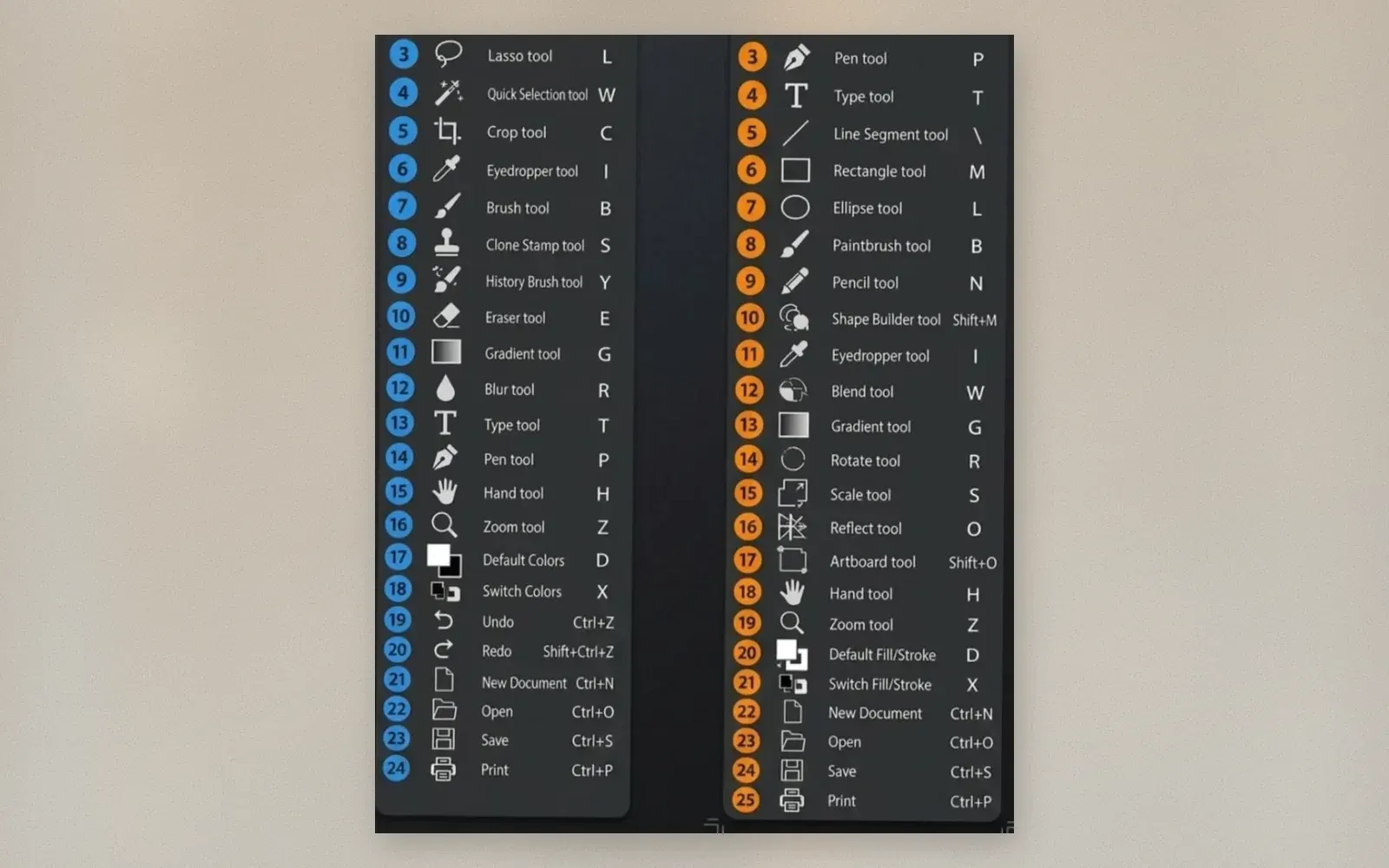
Every designer knows the pain of reaching for the mouse when your fingers are already on the keyboard. Photoshop and Illustrator share many shortcuts, but the differences trip up anyone who switches between them regularly. This cheat sheet puts the essential tools side by side — 24 shortcuts per program, with the shared ones highlighted.
🏷 Design gear on Amazon Buy on Amazon → · Check on Etsy →
Selection and Navigation
The foundation of both programs is selecting and moving things. In Photoshop, V activates the Move tool for repositioning layers and selections. In Illustrator, V activates the Selection tool for selecting entire objects or groups. The Direct Selection tool (A) in Illustrator selects individual anchor points — a distinction that matters when editing vector paths.
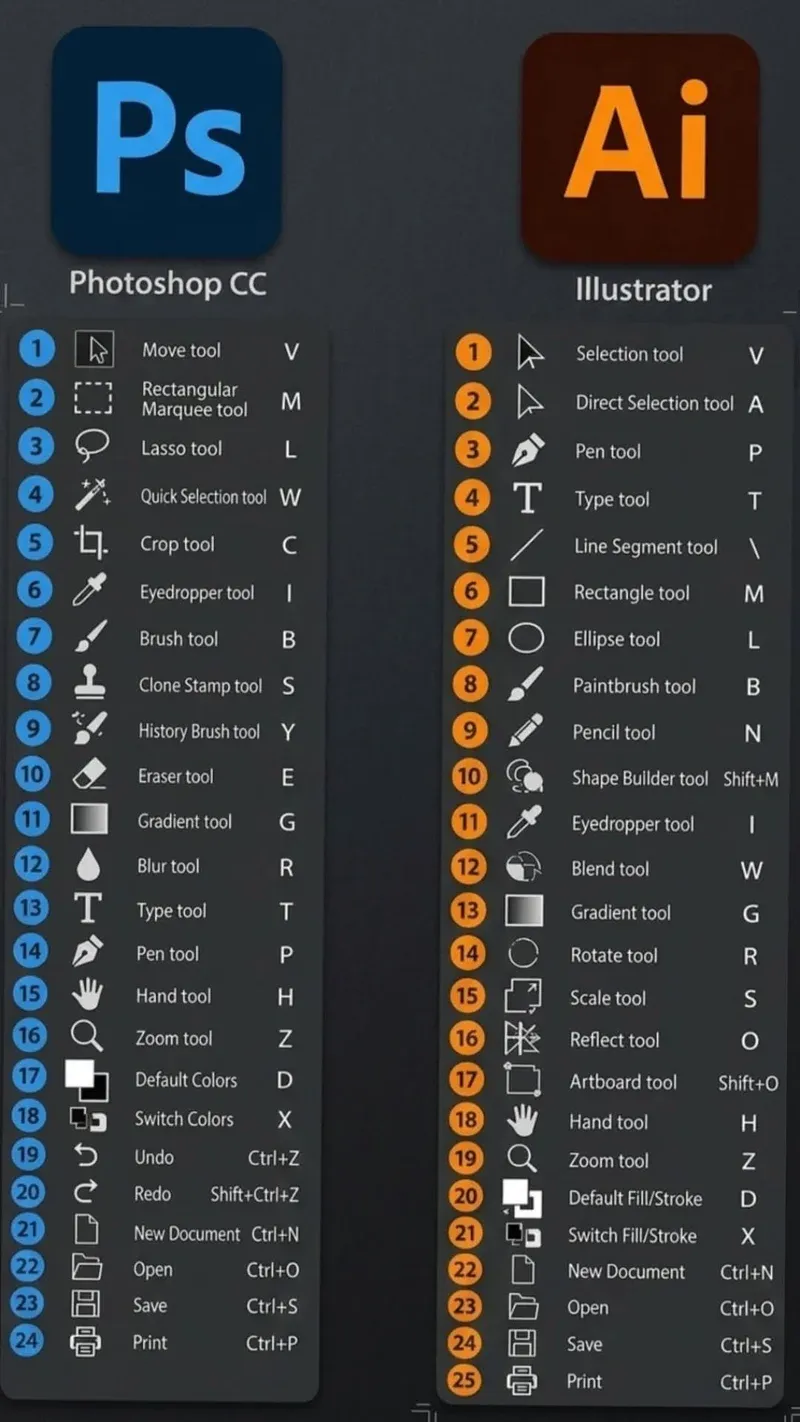
The Hand tool (H) and Zoom tool (Z) are identical in both programs. Hold H and drag to pan, or hold Z and click to zoom. These two shortcuts work the same way in every Adobe application, which makes them muscle memory for anyone who uses Creative Cloud.
Drawing and Shape Tools
The Pen tool (P) is the most important tool in Illustrator and one of the most important in Photoshop. In Illustrator, it creates vector paths with anchor points. In Photoshop, it creates paths for selections, masks, and vector shapes. Same shortcut, different workflows.
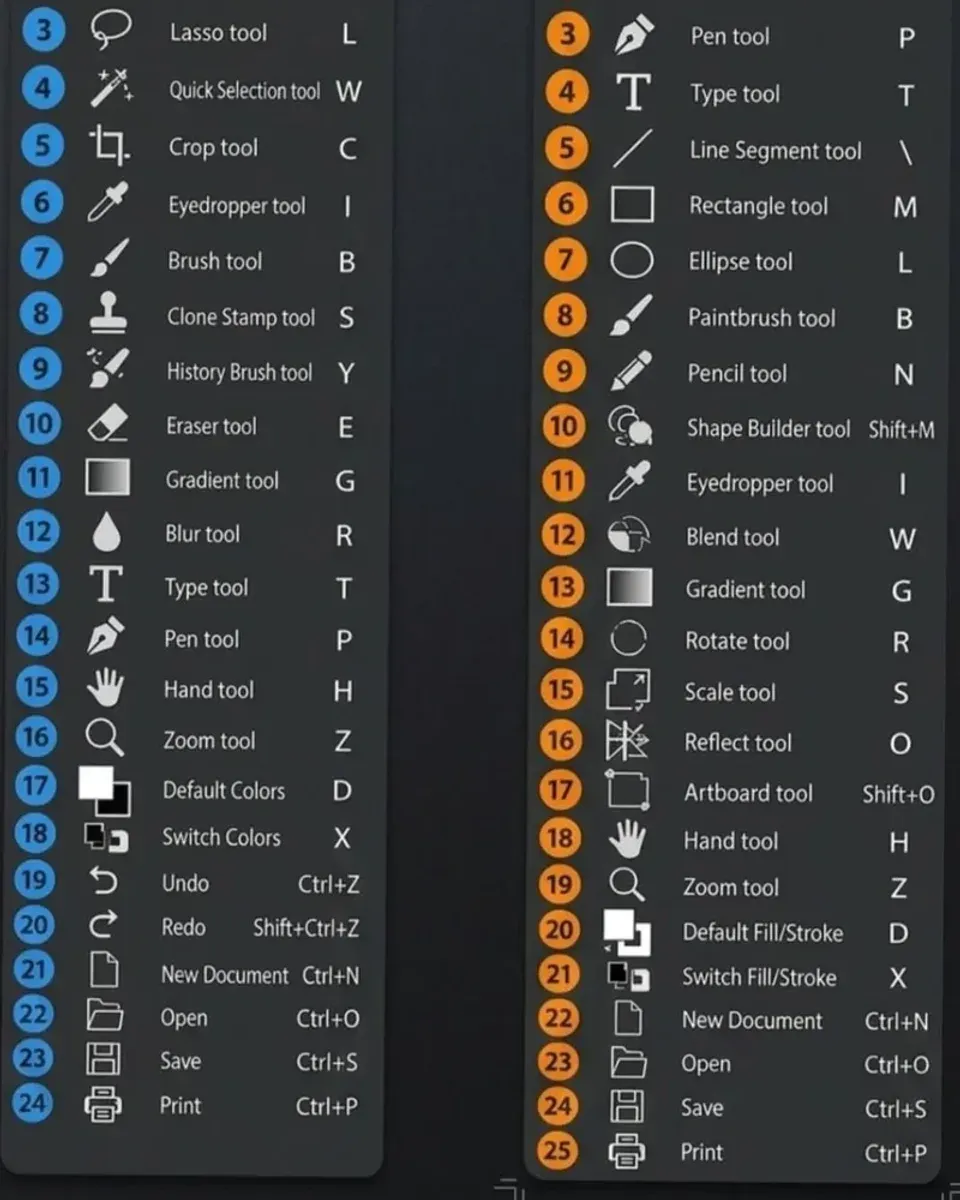
Illustrator’s shape tools — Rectangle (M), Ellipse (L), and Line Segment () — have no direct equivalent in Photoshop. Photoshop’s Marquee tools (M for Rectangular, L for Lasso) serve a different purpose: selecting areas rather than creating shapes. This is the biggest source of confusion when switching between the two programs.
Painting and Editing
The Brush tool (B) in Photoshop paints pixels. The Paintbrush tool (B) in Illustrator applies brush strokes to vector paths. Same letter, fundamentally different mechanics. The Clone Stamp tool (S) in Photoshop copies pixels from one area to another — it has no Illustrator equivalent because vector graphics do not have pixels to clone.
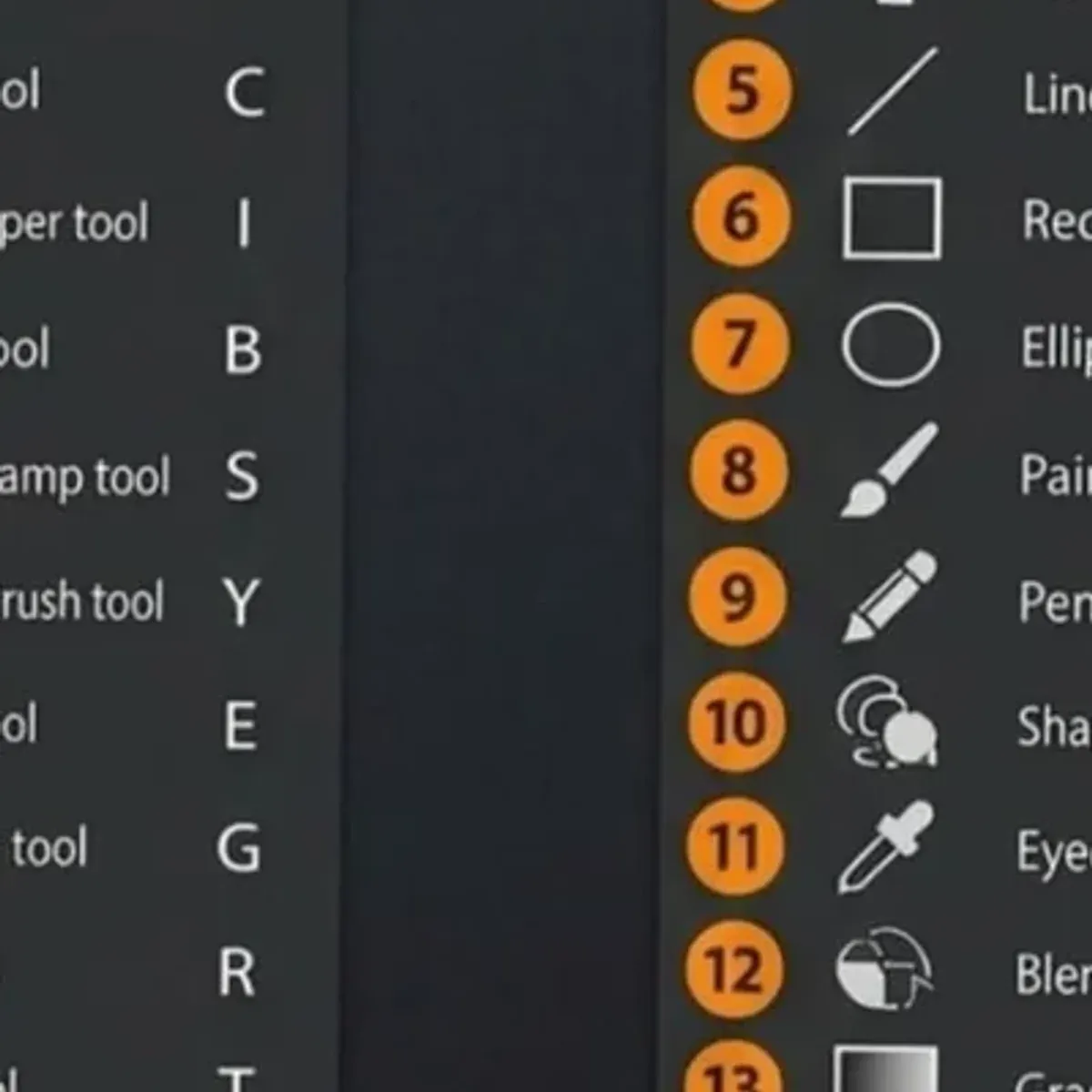
The Eraser tool (E) in Photoshop removes pixels. Illustrator does not have an Eraser tool — you delete objects or remove anchor points instead. The Gradient tool (G) works in both: Photoshop applies gradients to pixel selections, Illustrator applies gradients to vector fills.
Color and Text
The Eyedropper tool (I) samples color in both programs. In Photoshop, it picks a color from any pixel. In Illustrator, it picks fill, stroke, and effect attributes from objects. The Type tool (T) creates text in both, but Illustrator’s text is vector (scalable without quality loss) while Photoshop’s text is raster (pixel-based at the document resolution).
Default Colors (D) resets to black and white in both programs. Switch Colors (X) swaps foreground and background in Photoshop, or fill and stroke in Illustrator. These color shortcuts are identical and essential for quick color work.
File Management
New Document (Ctrl+N), Open (Ctrl+O), Save (Ctrl+S), Print (Ctrl+P), Undo (Ctrl+Z), and Redo (Shift+Ctrl+Z in Photoshop, Ctrl+Z toggles in Illustrator) are identical across both programs. These are the safest shortcuts to memorize first — they work the same way everywhere.
Who should use this cheat sheet?
Graphic designers who switch between Photoshop and Illustrator daily. The differences between V (Move vs Selection), M (Marquee vs Rectangle), and L (Lasso vs Ellipse) are the most common mistakes. Having both lists visible eliminates the guesswork.
Photographers who also do layout or illustration work. If you shoot in Photoshop and design in Illustrator, the shared shortcuts (P, T, B, G, I, H, Z) transfer directly, while the divergent ones (V, M, L, S, E) require conscious switching.
Students learning both programs. Starting with the shared shortcuts builds a foundation, then the differences become obvious when you compare the lists side by side.
Verdict
✅ Pros:
- 24 essential shortcuts per program covers daily workflow
- Shared shortcuts highlighted for easy reference
- Divergent shortcuts clearly labeled to prevent mistakes
- Covers selection, drawing, painting, color, and file management
- Works as a printable desk reference or monitor wallpaper
- Applicable to all versions of Photoshop CC and Illustrator
❌ Cons:
- Does not cover advanced shortcuts (transform, align, distribute)
- Some shortcuts differ between Mac and Windows (Ctrl vs Cmd)
- Customized shortcut sets may not match this reference
- Illustrator’s 25 shortcuts vs Photoshop’s 24 reflects different tool priorities
- Does not cover Illustrator’s shape builder (Shift+M) or artboard tool (Shift+O) in detail
🏷 Find design gear Best prices on Amazon →
🇩🇪 This article is also available in Deutsch:
Read in Deutsch →
FAQ
What are the most important Photoshop shortcuts?
V (Move), M (Marquee), L (Lasso), W (Quick Selection), C (Crop), B (Brush), S (Clone Stamp), E (Eraser), G (Gradient), T (Type), P (Pen), H (Hand), Z (Zoom). These cover 90% of daily Photoshop work.
What are the most important Illustrator shortcuts?
V (Selection), A (Direct Selection), P (Pen), T (Type), M (Rectangle), L (Ellipse), B (Paintbrush), G (Gradient), I (Eyedropper), H (Hand), Z (Zoom). These cover the core vector design workflow.
Which shortcuts are shared between Photoshop and Illustrator?
V (Move/Selection), P (Pen), T (Type), B (Brush/Paintbrush), G (Gradient), I (Eyedropper), H (Hand), Z (Zoom), D (Default Colors), X (Switch Colors), Ctrl+Z (Undo), Ctrl+N (New), Ctrl+O (Open), Ctrl+S (Save), Ctrl+P (Print).
What is the difference between V in Photoshop and Illustrator?
In Photoshop, V is the Move tool for repositioning layers and selections. In Illustrator, V is the Selection tool for selecting entire objects or groups. The Direct Selection tool (A) in Illustrator selects individual anchor points.
How do you customize keyboard shortcuts in Photoshop and Illustrator?
Go to Edit > Keyboard Shortcuts (Photoshop) or Edit > Keyboard Shortcuts (Illustrator). You can reassign any shortcut, save custom sets, and export them for backup. Custom shortcuts sync across machines with Adobe Creative Cloud.

Continue reading
Desk Clamp Power Strip with 65W USB-C: Charge Everything Under Your Desk
A clamp-on power strip with 65W USB-C fast charging that mounts under your desk. Here's what it actually delivers.
AODUKE Mac Mini M4 VESA Bracket: Turn Your Mini Into a Clean All-in-One Setup
The AODUKE VESA bracket hides your Mac mini behind the monitor for a clutter-free desk. Here's what it actually delivers.
3D Printer Workstation with Filament Storage Review: Workshop Cart That Holds Everything
3D printer workstation review: mobile cart with filament storage, dry boxes, and locking casters. Does it organize a maker space or just collect dust?